No gameId provided in insertCoin
You called insertCoin() without a gameId.
To fix it, create a project on the Playroom Dev Portal and paste your gameId into insertCoin.
How to get your Game ID
Go to the Dev Portal
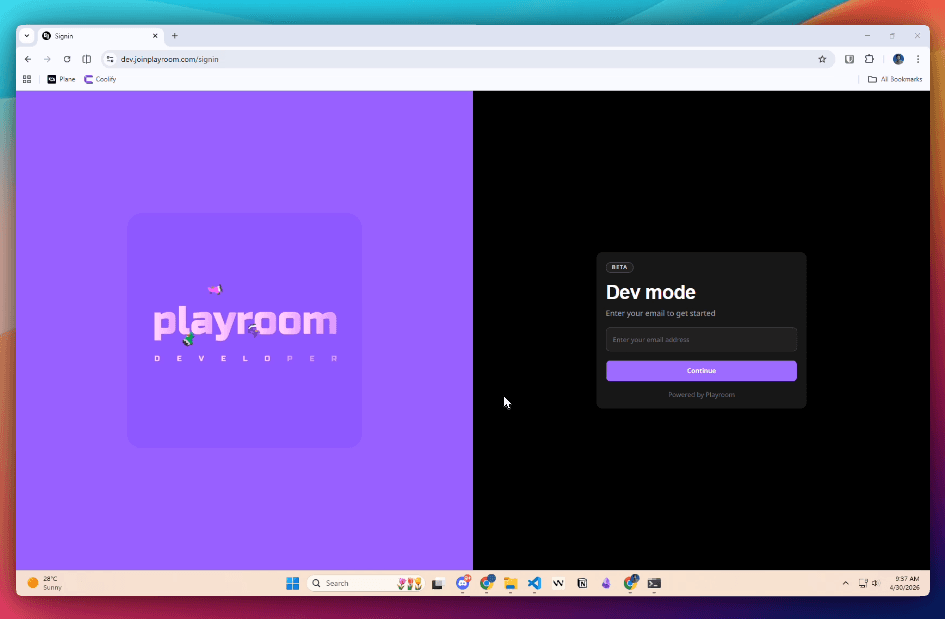
Start by navigating to the Playroom Dev Portal. This is where you’ll manage all your game projects and get your unique gameId. You’ll see the Dev mode sign-in form ready for you to get started.
Enter your email
Type your email address in the Dev mode field and click Continue. This will send you a verification link to confirm your identity.
Check your email
You’ll receive a Sign in to Playroom email from noreply@joinplayroom.com. Open the email and click the Sign in to Playroom link. This authenticates you and logs you into the Dev Portal.
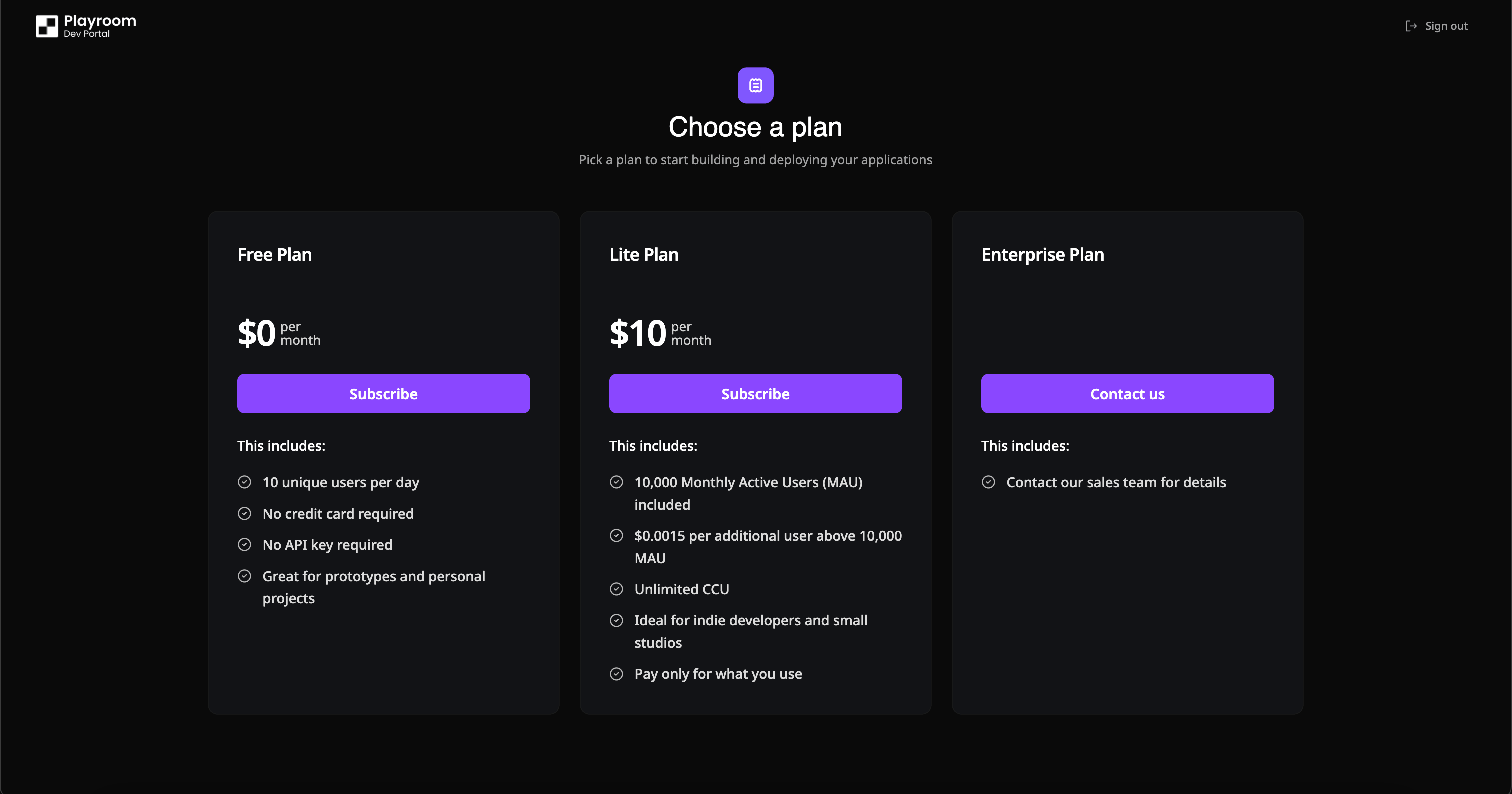
Choose a plan
After logging in, you’ll need to select a plan to activate your account. Select the plan that works best for your needs.
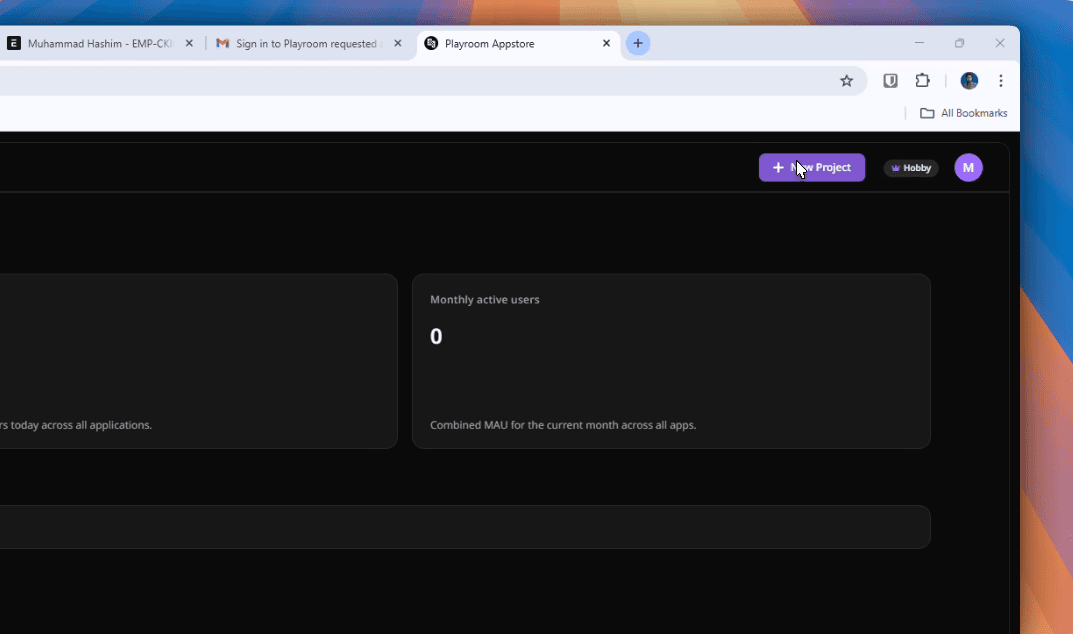
Click + New Project
Once your plan is activated, you’ll land on the dashboard. Here you can see all your projects. Click the + New Project button in the top right corner to create a new project and get your gameId.
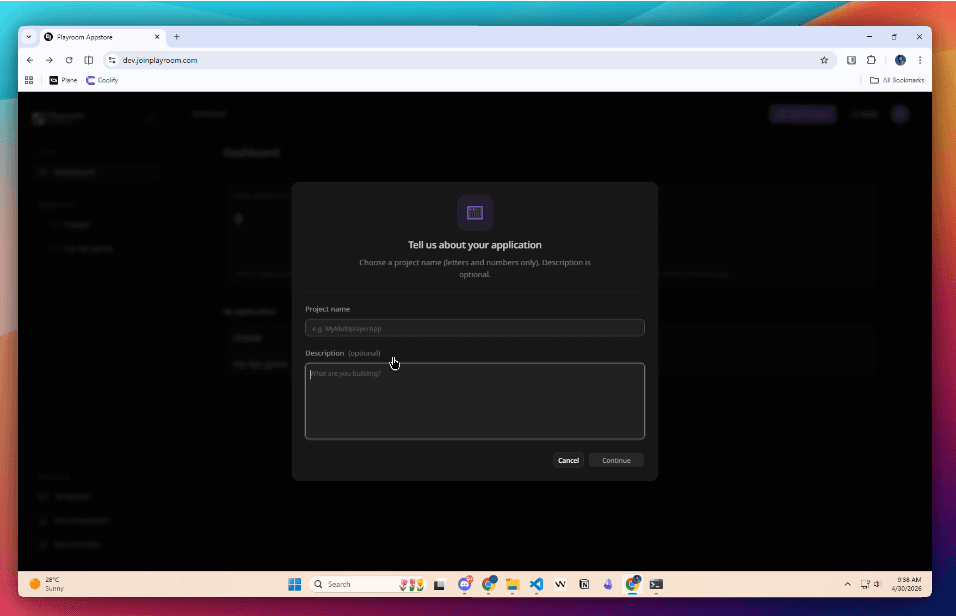
Name your project
A dialog will appear asking you to name your project. Enter a project name using only letters and numbers, then click Continue. This name helps you organize and identify your projects.
Open your project
Your project is now created! You’ll see it appear in the left sidebar under Applications. Click on your project name to open it, then click the Configuration tab. This is where you’ll find your gameId.
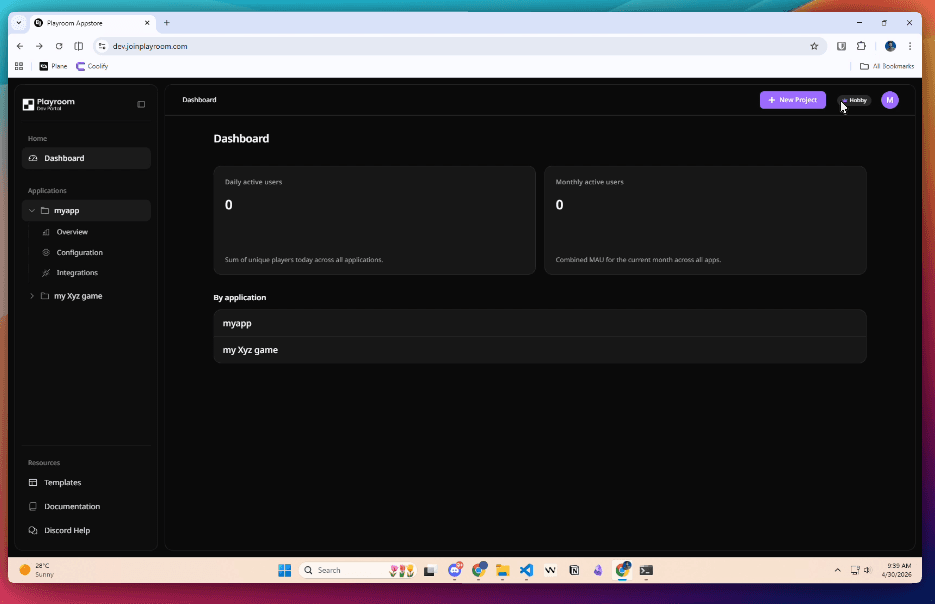
You’ll land on the Configuration page. Your gameId is displayed in the General section at the top.
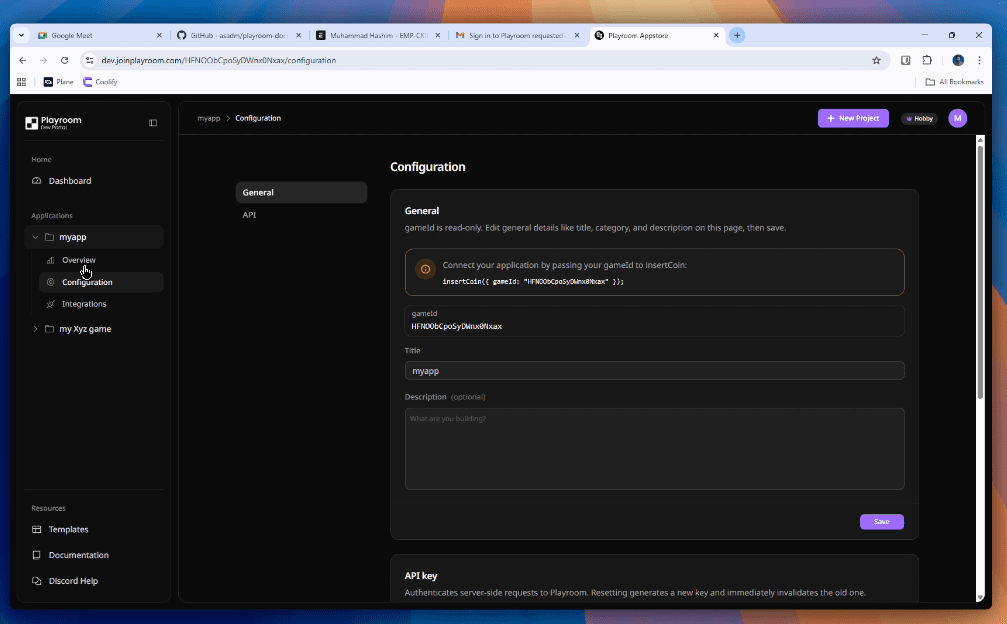
Copy your Game ID
In the General section at the top of the Configuration page, you’ll see your gameId field. You have two options:
- Copy only the
gameIdvalue from the field, or copy the ready-madeinsertCoin()code snippet shown in the box—it already includes your gameId and is ready to paste into your code.
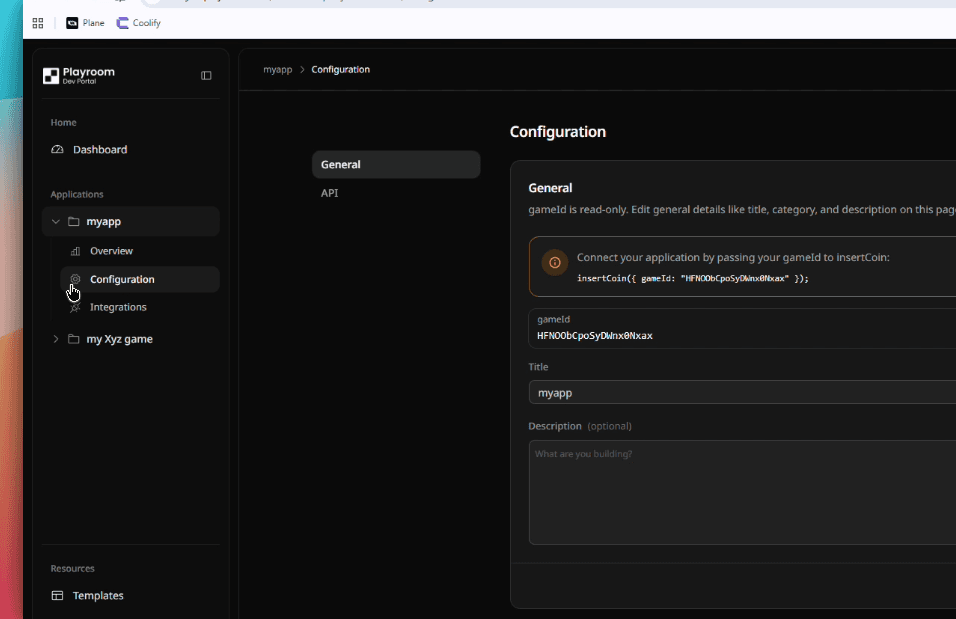
Use the Game ID in your code
Paste the gameId into your insertCoin call:
insertCoin({ gameId: "your_game_id_here" });The gameId is read-only and assigned when you create a project. You can always find it again in your project’s Configuration → General tab.
For the full reference, see insertCoin API docs.
Vibe Coding Prompt
Vibe-code friendly
Add your gameId to generate a custom prompt for your AI coding assistant. This ensures the prompt knows exactly which game you’re working with.
I am building a multiplayer game using Playroom Kit. I have just created a project on the Playroom Dev Portal and obtained my gameId.I need you to find the insertCoin() call in my codebase and add my gameId to it so it reads:insertCoin({ gameId: "PASTE_YOUR_GAME_ID_HERE" })If insertCoin is called with no arguments or with an options object that is missing gameId, update it to include the gameId.Do not change anything else. Only use the official Playroom Kit API.After making the change, show me the updated line